
Insights and Learning Loop
Distinguish available platform reporting from earlier Learning Loop behavior. Check your workspace for access rather than relying on an old rollout statement.
Check the Insights and Learning Loop features available in your account. Reporting and learning-driven generation are different capabilities.
Review the current plan and feature availability in your account’s Billing settings. The current catalogue is Social, Search and Growth.
Earlier Autopilot documentation describes a Learning Loop that uses edits and content performance to inform generation. This guide does not announce a current rollout or promise access on every plan. Confirm availability in your account or with Support.
Start the Learning Loop in your account
In earlier Autopilot workspaces, the Learning Loop was described as using editing patterns and post performance to inform generated content. Platform reporting can help you review results; it does not by itself establish conversion attribution or automatic strategy changes.
The steps and screenshots below describe the earlier interface. Follow them only if the matching controls and feature are available in your workspace. If you do not see the Enable section, ask Support about your account rather than assuming a rollout date.
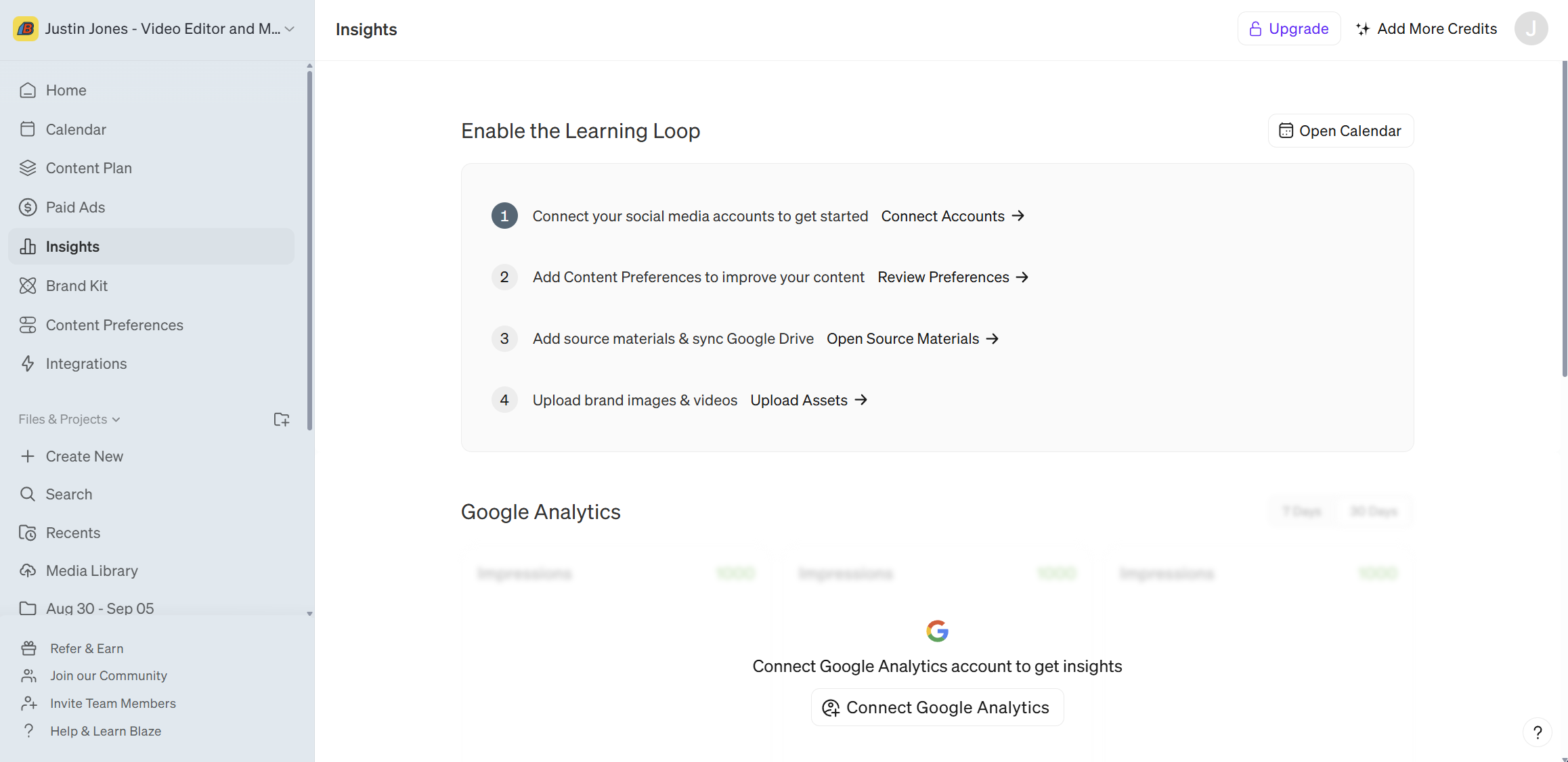
Connect your Accounts
Connect any and all social media, blog, and email accounts to Blaze that you wish. We have an entire Integration support library that walks your through the connection process of each of the integrations.
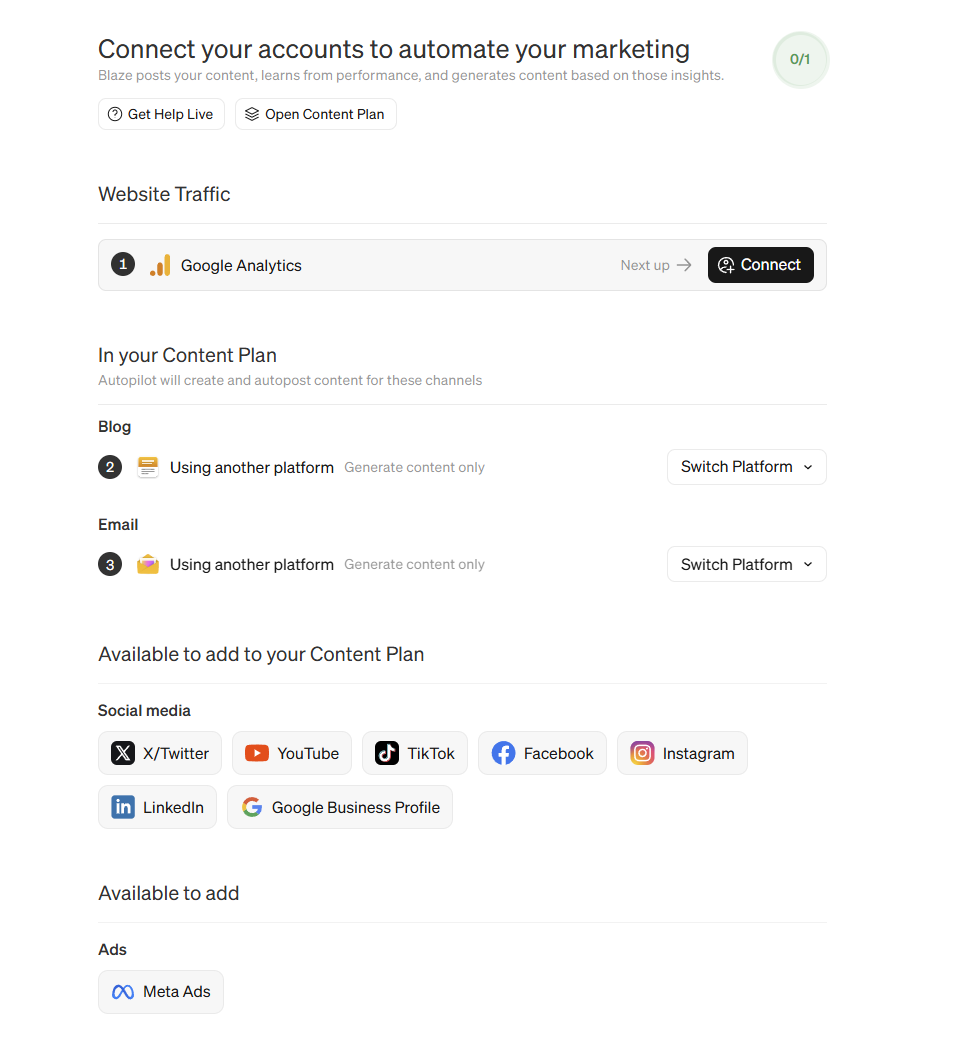
Review Content Preferences
Now review all of your content preferences to make sure they reflect the kind of content that you want generated. Dive deep into Content Preferences
Use the icons at the top of the page to review and adjust each of the content types:
General
Video
Image
Social Media
Blog & Email
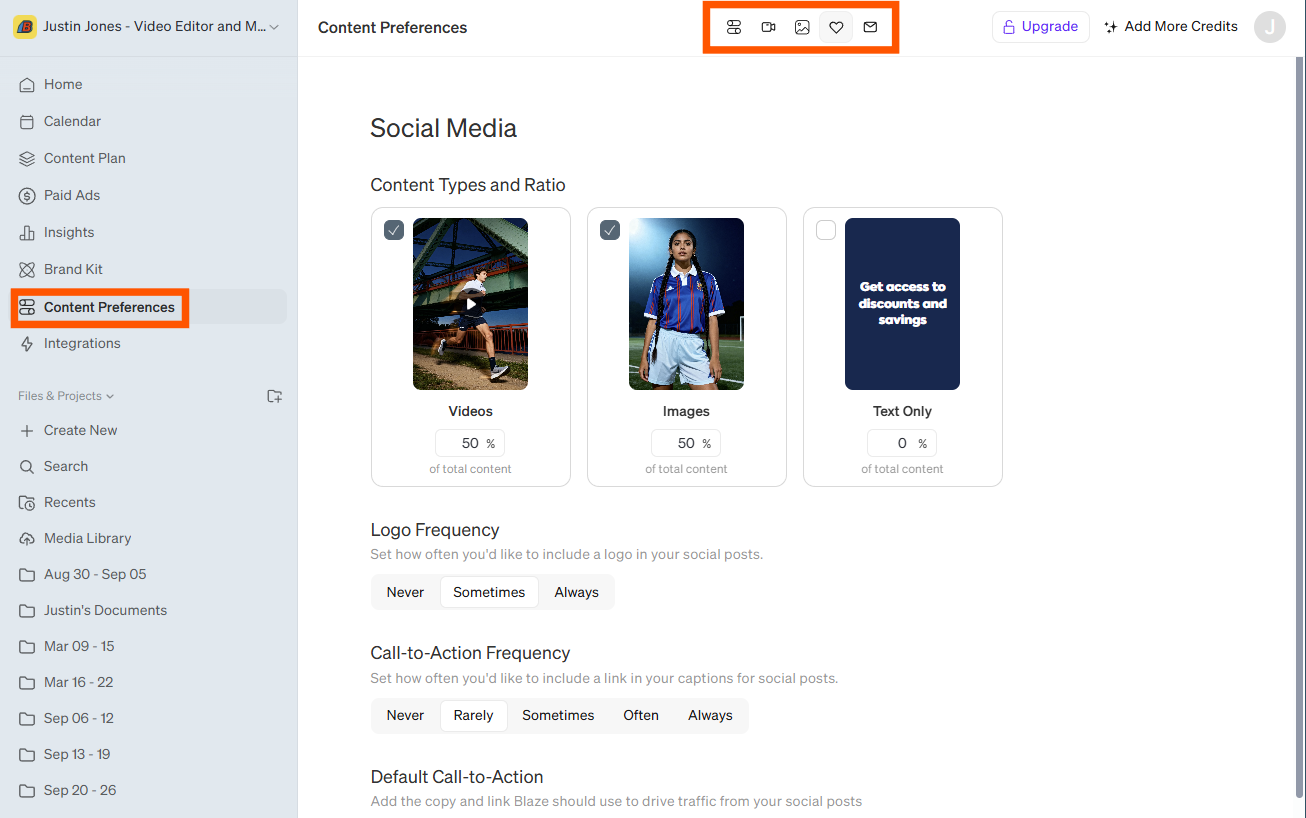
Add Source Materials
Blaze studies Source Materials to better understand your business. You want to upload any and all content that you would want an employee or a customer to know.(no sensitive data though)
Learn more about Source Materials in our Brand Kit article.
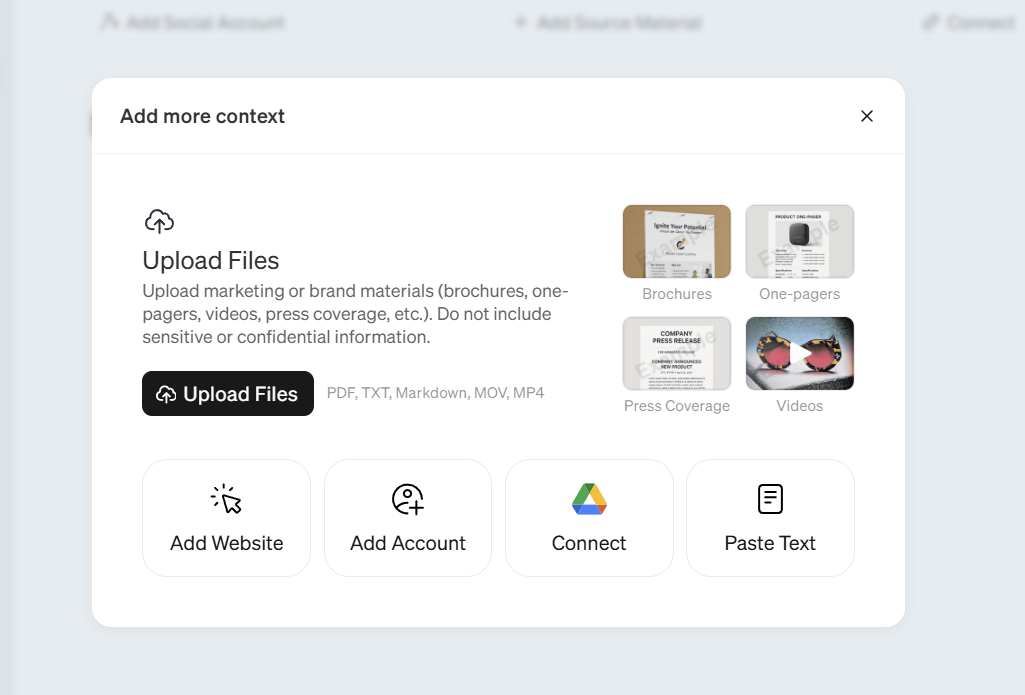
Upload Images & Videos to your Media Library
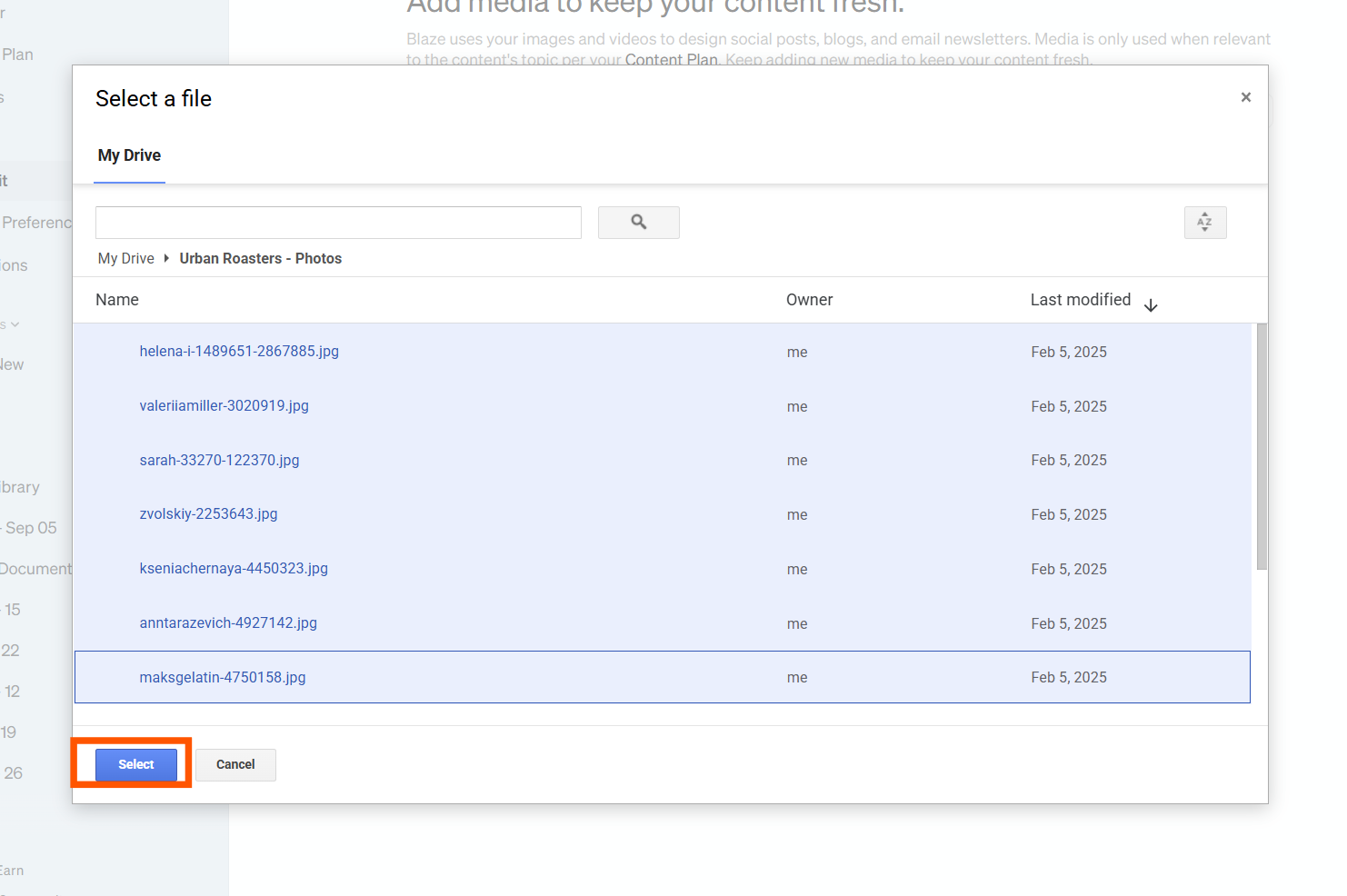
Manually upload (or sideload from google drive) any photos and videos that you want Blaze to use in your content.
All content in the Media Library gets reviewed by Blaze and incorporated into the content it creates for you.
Review Insights and Trends
Once your learning loop is active - Blaze will begin to study the performance of your posts.
After some time, when you visit the Insights tab you will begin to see overall trends outlining platform specific feedback around what is working, and areas that can be improved.
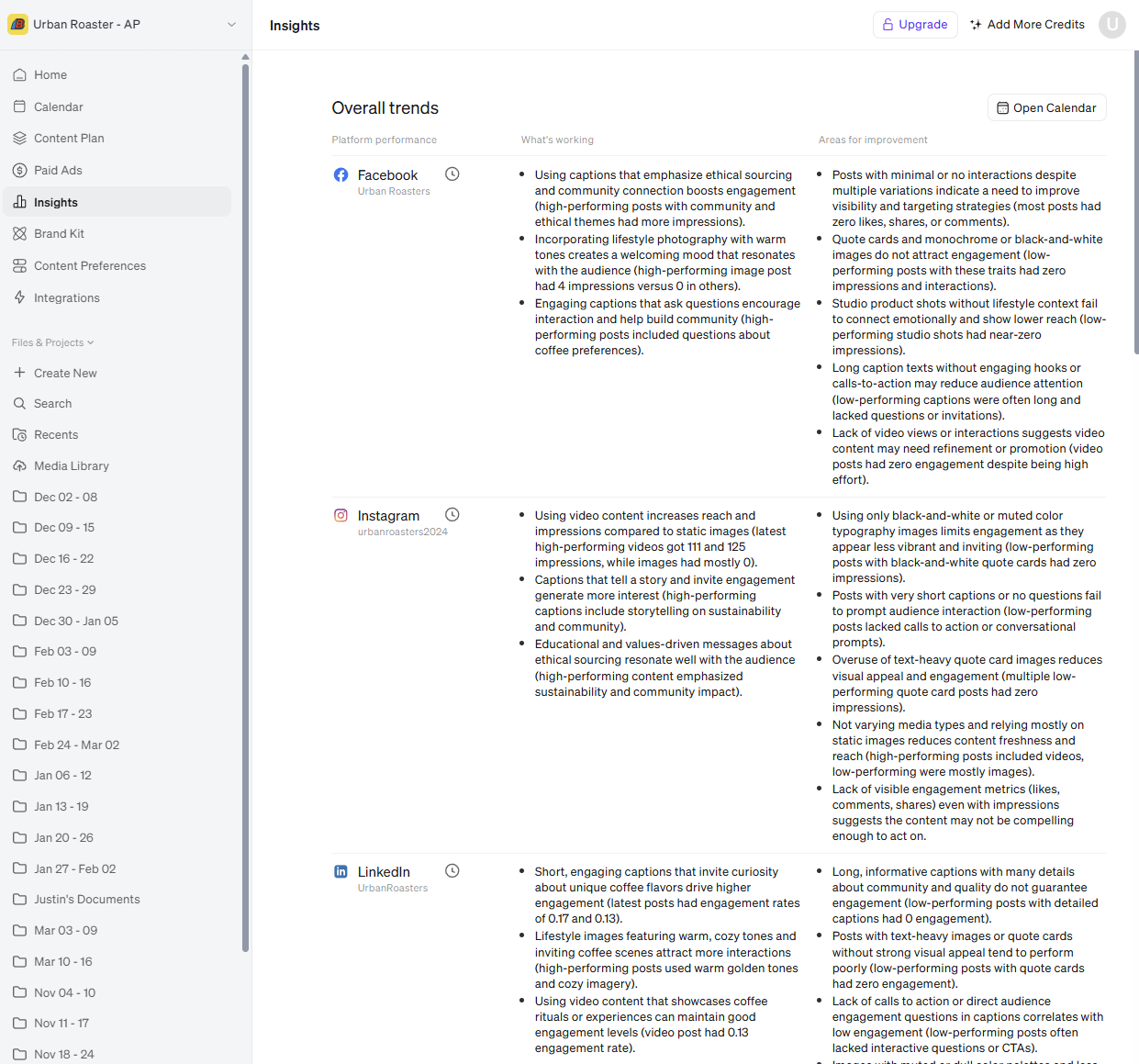
Insights - Jump to your favorite platform
When you first open the tool all of the platforms will be listed inline when you scroll down an icon list will appear at the top of the page. You can click any of the icons in this list to jump to the platform of your choosing.

Platform Performance Highlights
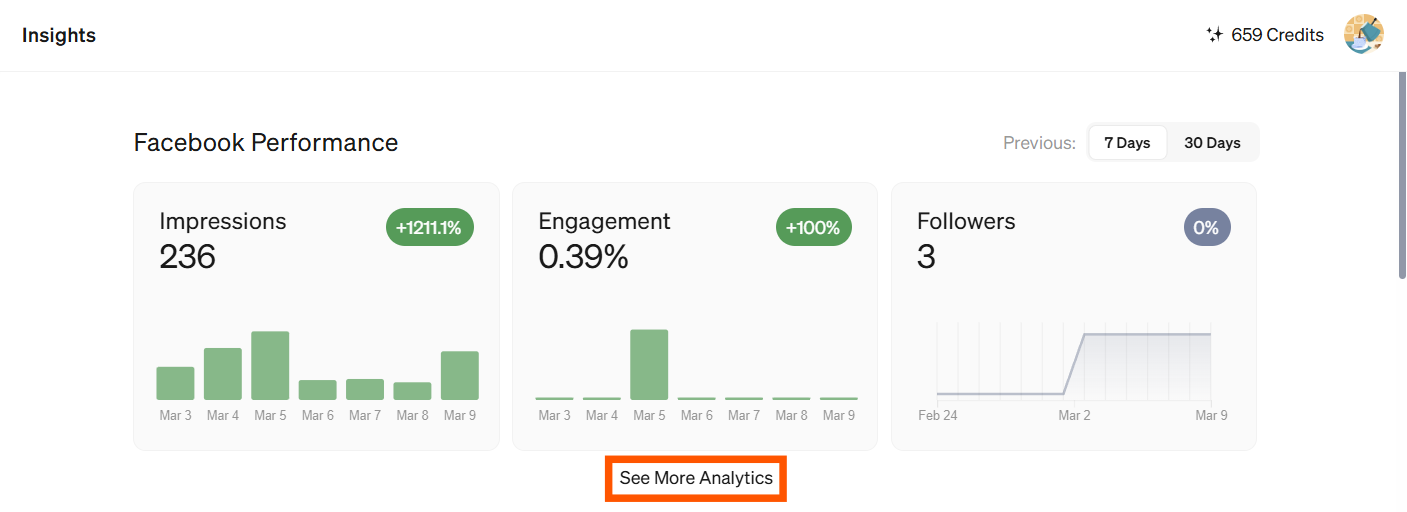
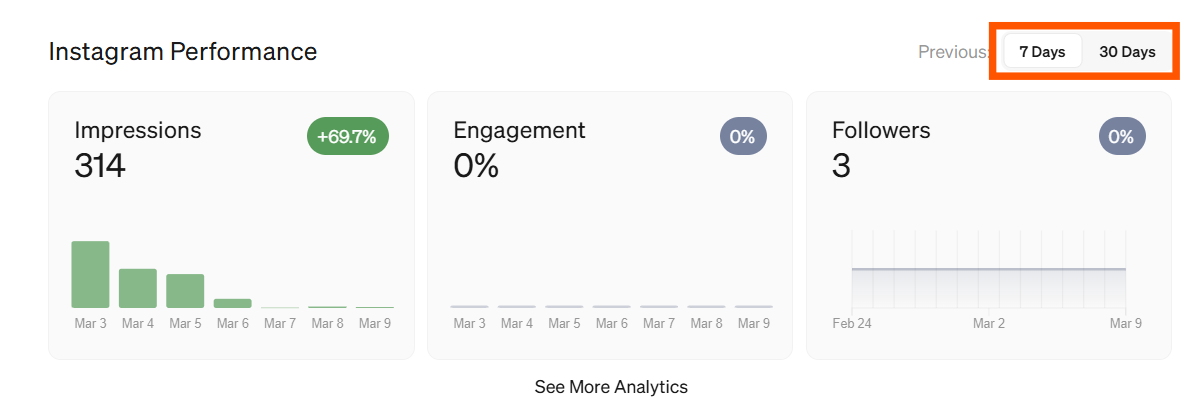
When you select a platform, the page will jump to that section on the page and display some popular data points. If you want to dive deeper into that platform click See More Analytics.
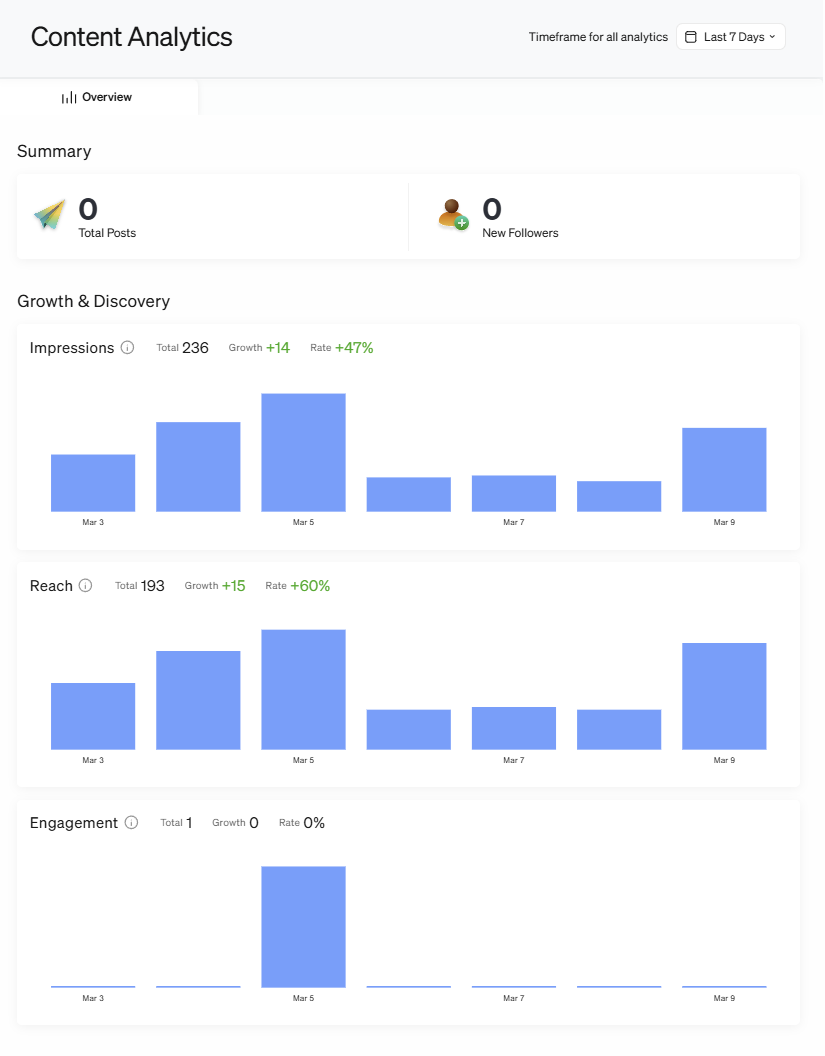
Once opened - you can see a much more detailed display of the traffic for your selected platform.
Click the Insights tool from the sidebar to return to the higher level view.
Adjust Data Scale
The Platform Performance view
You can use the toggles on the right side of each of the platform preview sections to toggle between 7 Days and 30 Days.
The "See More Analytics" view
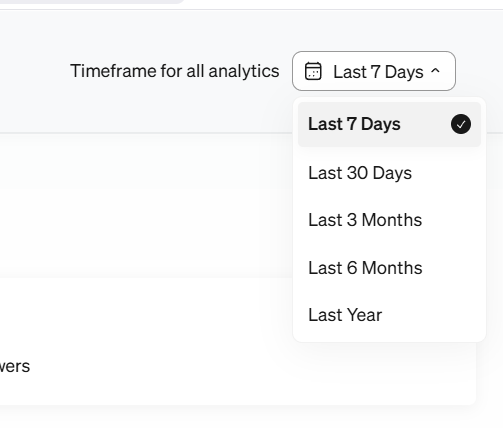
You can use the drop down menu shown below to scale performance data from 7 days up to an entire year.
How do you set this up?
Many of the integrations in Blaze begin to pass performance data back and forth once connected.
Certain integrations like Google Analytics is designed specifically for passing traffic data through to Blaze and needs to be manually setup.
Data Exchange Begins
Anytime you connect new integrations with Blaze, it may take up to a few days for the data to begin to visualize.
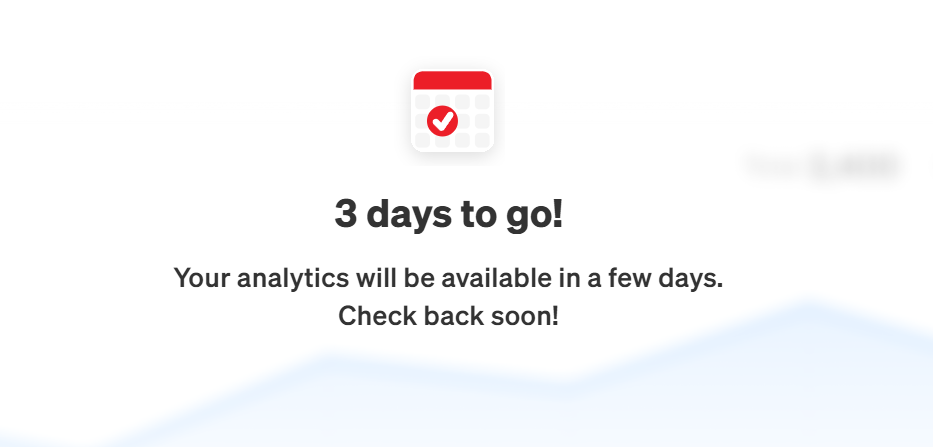
All platforms have a waiting period (usually a few business days) before the the data will be available inside of Blaze.